
If you have ever opened HubSpot and wondered why so much depends on getting the right data in the right place, you are already thinking about properties — even if you have never used that word for it.
Properties are the fields that store information inside HubSpot. Every data point you capture about a contact, a company, a deal, or a ticket lives in a property. They are the building blocks of your CRM. And yet most people who use HubSpot every day have never consciously thought about what a property is, why it exists, or how the decisions you make about properties affect everything else downstream.
This post is about changing that. Whether you are a brand new HubSpot administrator trying to get your bearings, or an experienced user who wants to be more intentional about how your portal is structured, the goal here is the same: understand properties well enough to use them on purpose, not by accident.
What a Property Actually Is
A property is a field that stores a specific piece of information about a record in HubSpot. Think of a record as a row in a spreadsheet, and a property as one of the columns in that spreadsheet.
When you look at a contact record and you see a field that says "Job Title" or "Lead Status" or "Last Activity Date", those are properties. Some of them come built into HubSpot by default. Others you create yourself based on what your business needs to know.
The reason properties matter is simple: you cannot use data you have not captured, and you cannot capture data cleanly without a property designed to hold it. If the information is not in a property, it does not exist in HubSpot in any meaningful, searchable, or reportable way.
|
Engagent Insight: The most common CRM data problem we see is not that businesses are missing data — it is that their data is in the wrong place. Notes fields full of information that should be in structured properties. Custom fields named inconsistently. Dropdown options that have multiplied over time with nobody sure which ones to use. Properties are not just storage. They are the architecture of your data, and a messy architecture produces messy results. |
Properties Live on Objects — and That Matters
In HubSpot, data is organised around objects. An object is a category of record. Most people start with the four core CRM objects:
- Contacts — individual people
- Companies — organisations your contacts belong to
- Deals — revenue opportunities you are pursuing
- Tickets — service and support cases
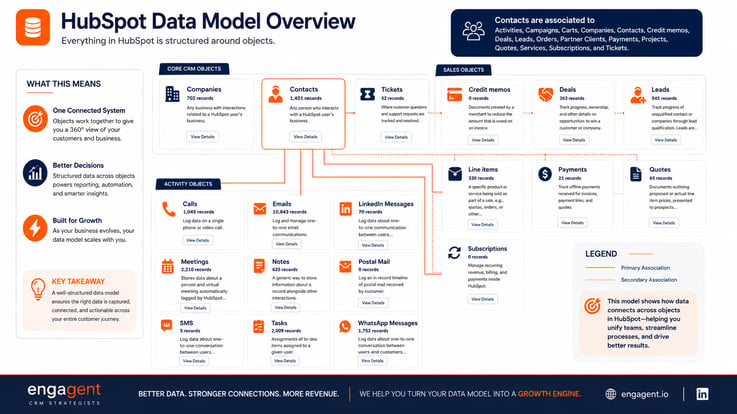
But HubSpot's object architecture goes well beyond those four. If you open the Data Model view inside your portal (Settings > Data Management > Data Model), you will see the full picture. A typical HubSpot portal contains three categories of objects:
- CRM Objects — Contacts, Companies, Tickets
- Sales Objects — Deals, Leads, Quotes, Line Items, Payments, Credit Memos, Subscriptions
- Activities — Calls, Emails, Meetings, Notes, Tasks, LinkedIn Messages, SMS, WhatsApp Messages, Postal Mail
That is potentially 19 distinct objects in a single portal — and properties can be built for any of them. The Data Model view also shows you how these objects are associated with each other. Contacts, for example, are associated with Companies, Deals, Tickets, Activities, Quotes, and more. Those association lines matter for property design because data flows along them.
Depending on your HubSpot subscription, you may also work with custom objects — which allow you to create entirely new categories of records tailored to your business. If your company manages vehicles, properties, projects, memberships, or any other entity that does not fit neatly into the standard object set, custom objects are how you bring that into HubSpot. And like every other object, custom objects have their own set of properties that you define.
Every property belongs to a specific object. A contact property stores information about a person. A deal property stores information about an opportunity. They are not interchangeable — you cannot put a deal's close date on a contact record because that data belongs to the deal object.
This is not an arbitrary technical limitation. It reflects how CRM data should actually be structured. The company's industry is a company property because it describes the company, not the individual. The deal amount is a deal property because it describes the opportunity. Knowing which object a piece of information belongs to is the first discipline of good property design.
The associations between objects also raise a design question that catches many administrators off guard: if you are tracking something at the contact level, does that information also need to be visible — or influence decisions — at the company or deal level? If a contact carries an industry-specific qualification, does that roll up to the company? Does it affect how you score a deal? Properties built in isolation, without considering how data moves across associated objects, often create gaps at exactly the moments when you need the information most.
| Engagent Insight: When we onboard a new client, one of the first things we do is open the Data Model and map out which information belongs to which object — and how data should flow across the associations. Most portals we audit have contact records carrying data that should live on the company, deal records used to store information that belongs on a ticket, and no clear thinking about how properties at one object level connect to decisions at another. The confusion costs time, corrupts reports, and makes automation unreliable. Get the object architecture right before you build a single property. |
Default Properties vs Properties You Build
HubSpot ships with a large set of default properties already in place. These cover the basics — name, email, phone number, lifecycle stage, lead status, deal stage, close date, and many more. You do not need to create these. They are already there, and many of HubSpot's built-in features depend on them.
The properties you build yourself are called custom properties. These exist because no two businesses are identical. HubSpot cannot know in advance that your company needs to track the number of vehicles in a fleet, the membership tier of a client, the language a contact prefers to communicate in, or the original source of a lead before they entered your CRM. That information is specific to your operation, and custom properties are how you bring it in.
A few things worth knowing about the relationship between default and custom properties:
- Default properties are connected to HubSpot's native features. Lifecycle stage, for example, feeds into HubSpot's lead qualification logic, reporting templates, and workflow triggers. If you bypass it or create a parallel field that duplicates it, you break the connection between your data and HubSpot's tools.
- Custom properties give you flexibility, but they also require discipline. Every property you add is a field someone has to fill in, maintain, and keep accurate. More is not always better.
- Some properties you might think you need to build from scratch already exist as default properties under a different name. Before you create a custom property, it is worth searching what is already there.
Property Types: The Format of Your Data
When you create a property, one of the first decisions you make is the property type. This determines what kind of data the field can hold and how users interact with it. Getting this right matters, because the format of your data determines what you can do with it later.
| Property Type | What It Does | When to Use It |
|---|---|---|
| Single-line text | Free text, one line | Names, reference numbers, short descriptors |
| Multi-line text | Free text, multiple lines | Notes, descriptions, context fields |
| Dropdown select | One option from a predefined list | Status fields, categories, segments with a fixed set of options |
| Checkbox | Multiple selections from a list | When a record can have more than one value (e.g. product interests) |
| Date picker | A date value | Renewal dates, contract start dates, event dates |
| Number | A numeric value | Revenue figures, quantities, scores |
| Boolean (yes/no) | A true/false toggle | Consent fields, eligibility flags, binary indicators |
| Calculation | A value derived from other properties | Scores, weighted values, computed fields |
The most common mistake here is using a single-line text field when a dropdown would serve you better. Free text fields are flexible, but they create inconsistency.
If five different reps type a lead's industry into a text field, you will end up with five variations of the same word — "Finance," "Financial Services," "Fin. Services," "Banking," "financial" — none of which will group together cleanly in a report. A dropdown forces consistency. Consistent data is reportable data.
| Engagent Insight: We have a simple rule when reviewing property types with clients: if you can predict the possible values, use a dropdown. If you cannot — if the answer is genuinely open-ended and unique to each record — then text is appropriate. Most of the time, people reach for text because it is easier to create. But ease of creation creates a maintenance problem that compounds every month the portal is in use. |
Two Things Most People Overlook: Naming and Placement
Property type is not the only design decision that matters. Two others are easy to underestimate until the portal starts to feel chaotic.
The first is naming. A property called "Status" tells you almost nothing. A property called "Deal Status" or "Onboarding Status" or "Account Review Status" tells you exactly what it tracks and where it belongs. When you are operating a portal with dozens or hundreds of custom properties across multiple objects, consistent naming conventions are what keep administrators sane and users accurate. A simple format — Object + Context + Descriptor — goes a long way. Build the convention early and apply it consistently.
The second is placement within the record layout. HubSpot allows you to control which properties appear on a record's left sidebar and in what order. A property that exists but is buried three scrolls down a record is a property that will not get filled in. If a piece of information is important enough to capture, it needs to be visible at the moment when someone is most likely to have it. Layout is not a cosmetic decision — it is a data quality decision.
Three Ways to Think About Properties Before You Build Them
The most important thing to understand about properties is that they are not a technical decision — they are a strategic one. Before you add a property to your HubSpot portal, you should be able to answer one question: what will I do with this information?
There are three lenses that are useful here.
1. Strategic
What does your business need to know about its customers and prospects to make better decisions? A strategic property is one that helps you segment your audience, identify patterns, or inform how you approach a relationship over time. Ideal customer profile attributes belong here. Industry, company size, geographic region, revenue tier. These are the properties that power your segmentation, your targeting, and your personalisation.
2. Operational
What does your team need to know to do their jobs? An operational property is one that supports a process step. Lead status, next action date, assigned territory, last contacted date. These properties are the engine room of your workflow — they trigger automations, surface records to the right person at the right time, and track where something is in a process.
3. Analytical
What information do you need to measure performance and improve? An analytical property is one that feeds your reporting. Deal source, close reason, lost reason, first meeting date, sales cycle length. Without properties designed to capture this data consistently, your reports will always be incomplete — and your ability to learn from your pipeline will be limited.
Most properties serve more than one of these purposes at once. A dropdown for "Reason Lost" is operational (it closes the loop on a deal), analytical (it feeds your win/loss analysis), and potentially strategic (if it reveals patterns in why certain types of deals are being lost). Thinking through all three lenses helps you decide not just whether to build a property, but what type to use, what options to include, and how important it is to keep it filled in.
When Your Properties Come From Outside HubSpot
Not all of the properties you build will be born inside HubSpot. Two scenarios in particular require you to build properties that are designed to work with external data.
Integrations
If you are connecting HubSpot to another piece of software — an accounting system, an e-commerce platform, a project management tool — data is going to flow between the two systems. For that data to land cleanly inside HubSpot, there needs to be a property ready to receive it. These are called mapping properties. The field in the other system maps to a property in HubSpot. If the property does not exist, the data either does not come through, gets dropped into a generic field, or creates a mess.
Before any integration goes live, sit down and look at every field in the external system that you intend to bring into HubSpot. For each one, ask: does a matching property already exist in HubSpot? If not, build it before you connect the integration.
Data Imports
If you are bringing contact or company data in from a spreadsheet, the same principle applies. Every column in your spreadsheet needs to map to a property in HubSpot. HubSpot will walk you through the mapping process during an import, but if you arrive at that screen and the property you need does not exist, you have two choices: skip the column (and lose the data) or pause the import and build the property first. The second option is always the right one.
| Engagent Insight: One of the most common import disasters we help clients clean up is a spreadsheet import that was done without property mapping. Columns were skipped, data was lost, and now nobody is sure what made it in and what did not. The fix is always more work than the preparation would have been. Before you import, audit your spreadsheet columns against your HubSpot properties. Build what is missing. Then import. |
Properties Are Reusable — That Is the Point
One of the most powerful things about a well-built property is that you only have to capture the data once. A contact's industry, once stored in a property, can be used in a workflow trigger, a segmentation list, a personalisation token, a report filter, a sequence enrolment criterion, and a deal qualification rule — all at the same time, without asking anyone to enter that data again.
This is the compounding value of good property design. The information you capture at the top of the funnel becomes available at every stage downstream. Lead source captured at first contact can inform how you attribute revenue at close. Qualification criteria captured at the discovery stage can feed your pipeline reporting and your forecast. The data you collect in month one is still working for you in month twelve — but only if it was captured in a property, and only if that property was built with a type and format that makes the data consistent and usable.
Properties that are half-filled, inconsistently used, or built with the wrong type do not compound. They accumulate as noise, and noise erodes the quality of everything that depends on it.
How Many Properties Is Too Many?
There is no universal answer, but there is a useful principle: every property you add is a field someone has to maintain. If no one fills it in, it adds clutter without value. If it is filled in inconsistently, it creates confusion rather than clarity. If it duplicates another property under a different name, it splits your data and makes reporting unreliable.
The goal is not to capture everything you might ever want to know. The goal is to capture what you actually use. Start with what you need for your current strategy, your current operations, and your current reporting. Build from there as your needs grow. A lean, consistently filled property set will always outperform a bloated one with gaps everywhere.
| Engagent Positioning: Property design is one of the first conversations we have with every new client. Not because it is the most exciting part of a HubSpot engagement — it rarely is — but because it determines the quality of everything that follows. A portal built on well-designed properties gives you clean data, reliable automation, and reports you can trust. A portal built on an unplanned property structure gives you the opposite, regardless of how sophisticated everything else is. If you want to get this right before you go further, that is exactly the kind of conversation we are built for. |
-----------------------------------
What Comes Next
This post has focused on the thinking layer — what properties are, how they relate to objects, what types are available, and how to approach them strategically before you start building.
The next post in this series covers the practical layer: how to actually create properties in HubSpot, the different methods available to you, and when to use each one. If you have the thinking right, the execution is straightforward. That is where we are going next.
If you found this useful and want to go deeper on how your HubSpot property structure affects your CRM's ability to serve your strategy, get in touch with the Engagent team. We work with businesses across the Caribbean and beyond to make HubSpot do what it was designed to do.